Before you start
What you need
| Minimum | |
|---|---|
| Mac | Apple silicon |
| macOS | 13 |
| Pro Tools | 2024.10 |
Keep a few gigabytes free on the drive you bounce to. The app warns before a batch when space looks tight, and stops rather than write a partial file if the drive fills mid-print.
Install
Open the disk image and drag StemStation into the Applications folder shown beside it, then open it from Applications. macOS asks you to confirm the first time an app from outside the App Store opens.
First launch
Two short screens, once.
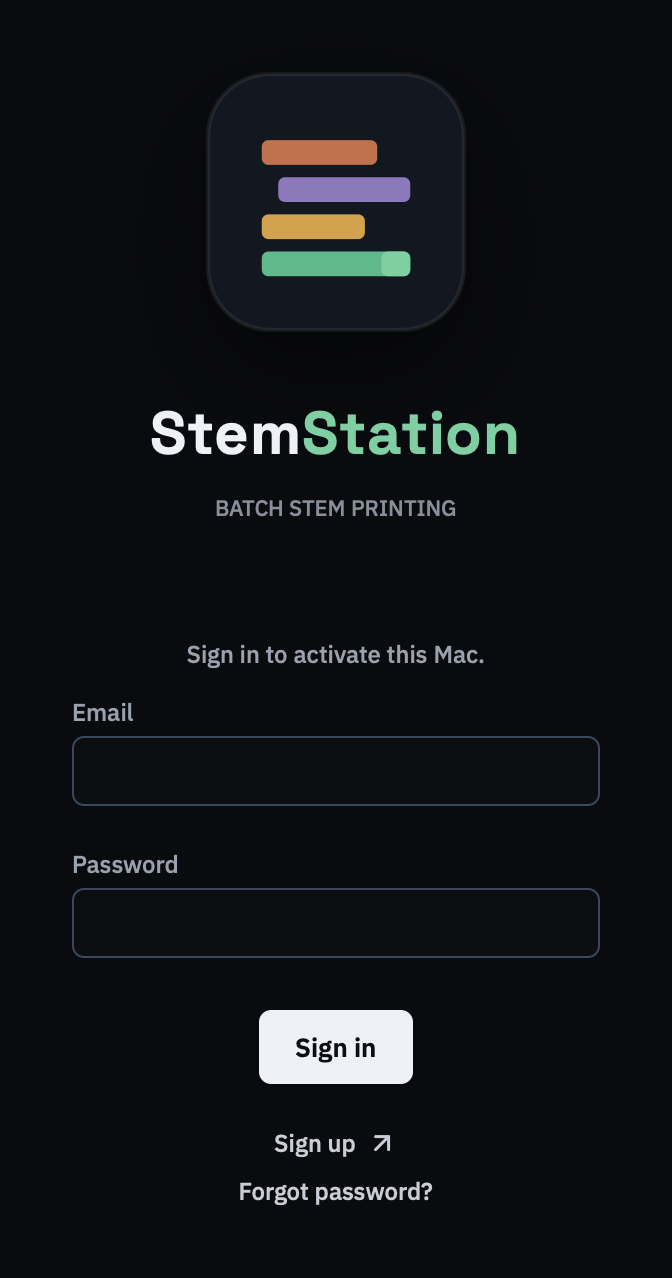
Sign in. Use the email address and password of your StemStation account. If you have no account yet, Sign up opens the website. Once you've confirmed your email, your account page lets you choose a plan or start a free trial. A free trial lasts a set number of days, and the app shows how many are left. Planning is free; your plan is checked when you start a bounce.
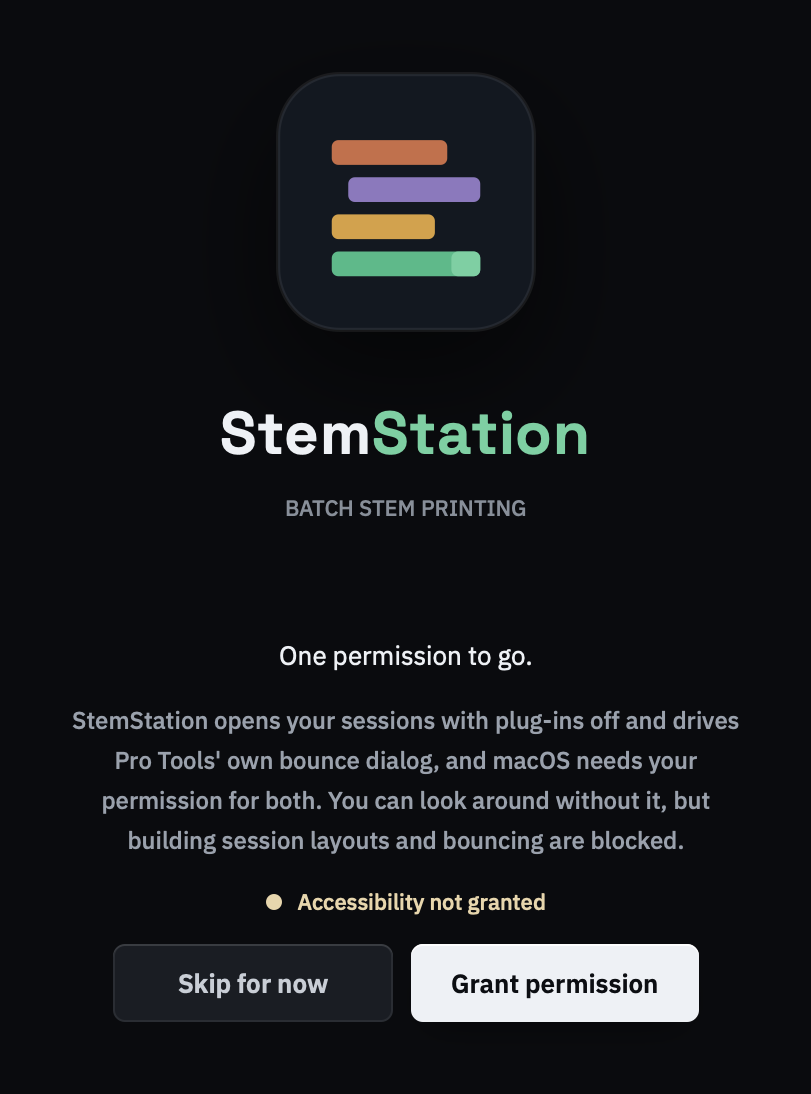
Grant Accessibility. StemStation drives Pro Tools for you, and macOS requires your permission for that. Press Grant permission and macOS shows its own alert; use its button to open System Settings and switch StemStation on. If macOS does not ask, press macOS didn't ask? Open Accessibility settings. The screen updates by itself as soon as the permission is granted.
You can press Skip for now and still load sessions, read their layouts and make groups. Bouncing, and building a layout with Pro Tools, wait until the permission is granted.
After that the app offers a two-minute walkthrough. It uses a built-in example session, touches nothing of yours, and shows every step in the order you would do it. You can replay it later from Settings ▸ About.
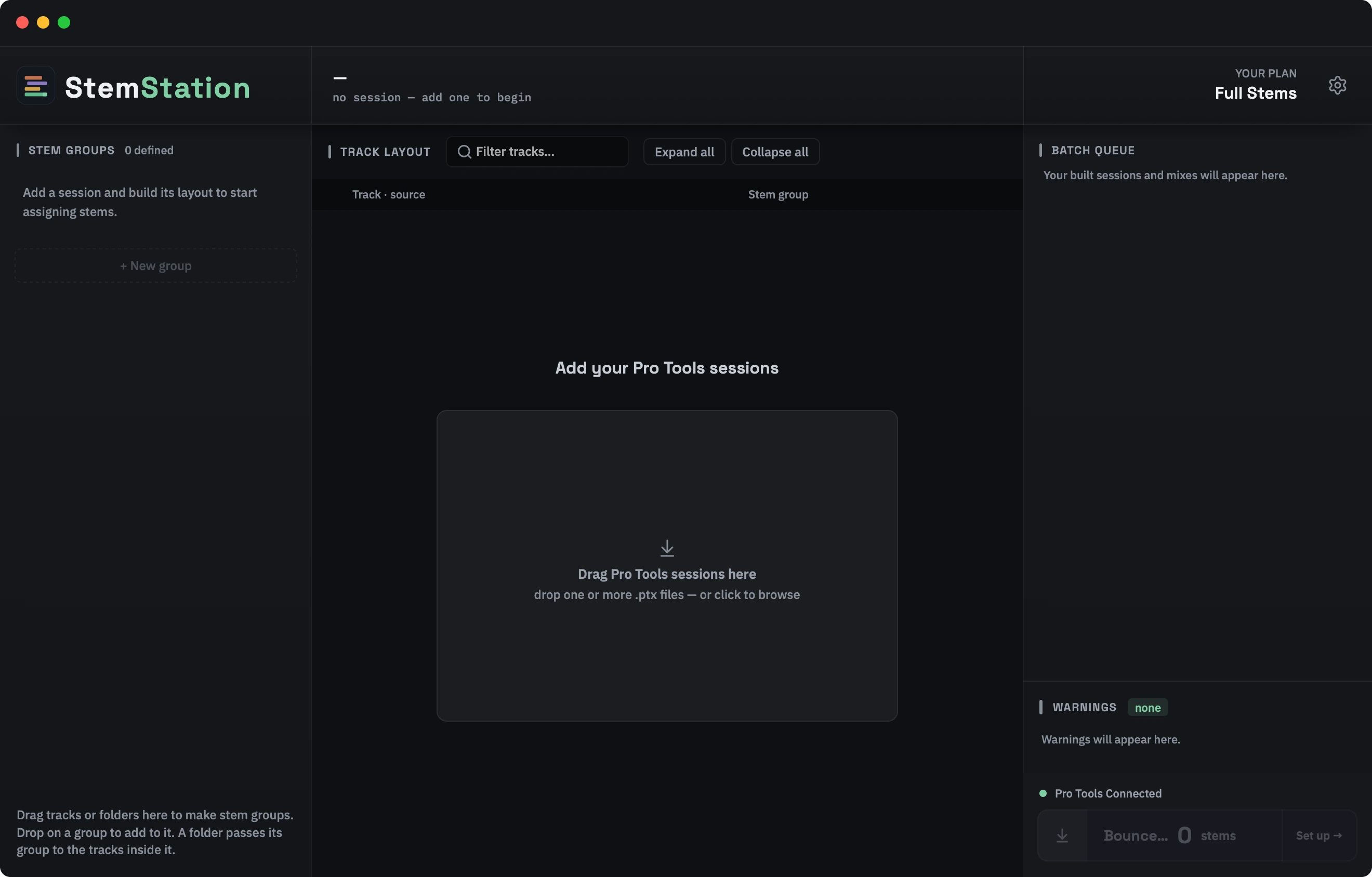
Once you are through, the app opens on its empty state:
Check the install
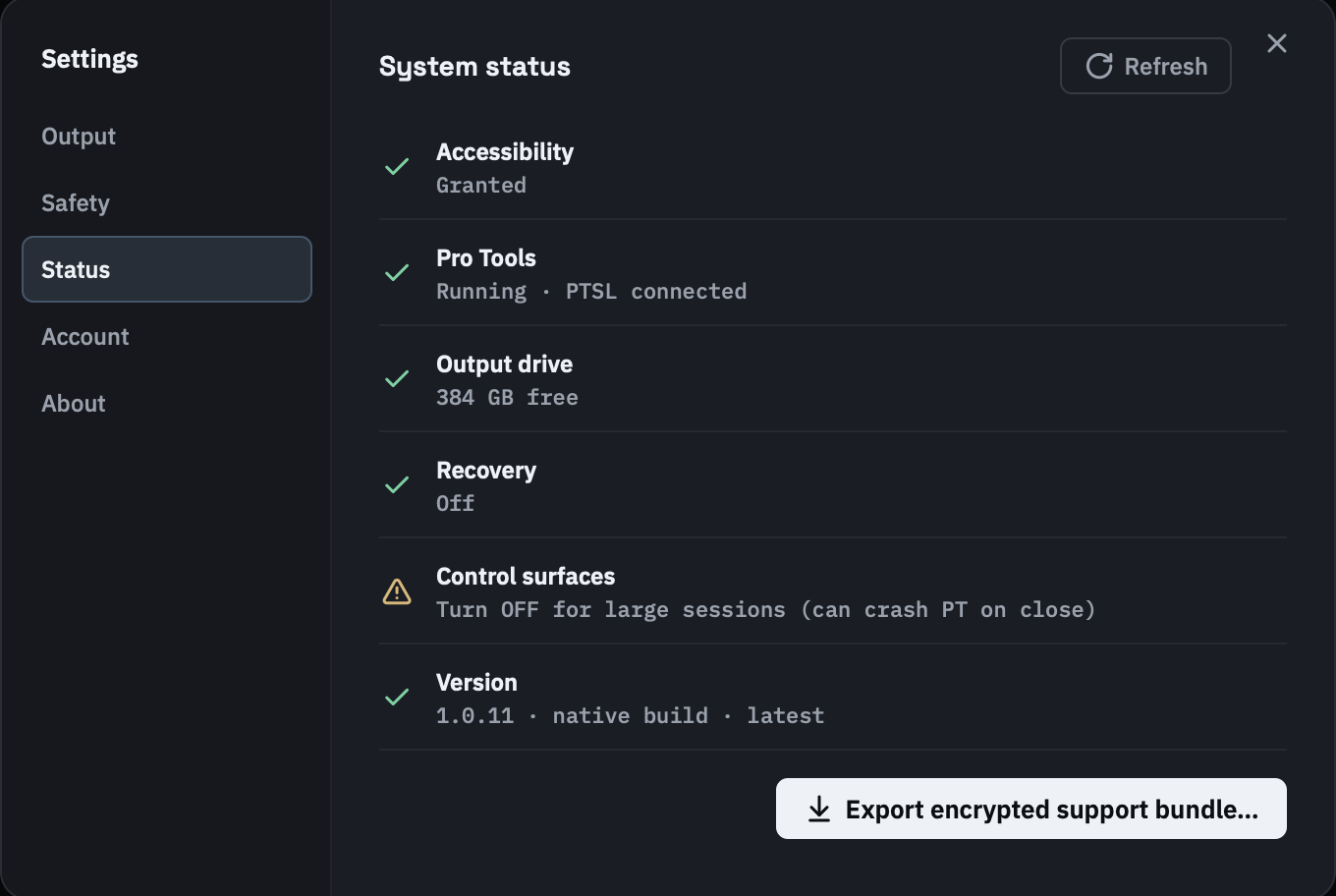
Open Settings (the cog in the top-right corner) and choose Status. Accessibility should read Granted. Pro Tools shows a red cross and Not detected while Pro Tools is closed; that is fine, because StemStation launches it when you print. Control surfaces stays amber whatever you do: it is a standing reminder, not a check (see Settings).
Pro Tools does not need to be open
Reading layouts does not use Pro Tools at all: StemStation reads each session straight from its file. When you print, the app launches Pro Tools if it is closed and opens each session itself. If Pro Tools is already open, that is fine, but the app takes it over: Pro Tools holds one session at a time, so whatever is loaded is saved and closed when the first song opens. Save and close your own work first if you would rather do that yourself.
Watch the first run
The single most useful piece of advice in this manual, and the app says it too, in Settings ▸ Safety:
Watch the first run on a new/heavy session. Once a session prints cleanly once, it's safe to batch and walk away.
Most of what goes wrong is Pro Tools reacting to something in your session: a plug-in that stalls on load, a missing-files dialog, a control surface that crashes Pro Tools on close. The app handles a lot of that automatically, and unknown dialogs are reported so they can be handled in a later update. The first run is where you find out what this particular session does.
One thing to know before you leave a batch unattended: recovery makes the app look idle for about four minutes. That is normal. See Pro Tools stopped responding.
How StemStation uses your session
Read this before you point the app at a session you care about. It is the one behaviour that surprises Pro Tools engineers, and the rest of the manual assumes you understand it.
It never prints from your session
When you press Read layouts, StemStation reads each session's layout straight from its .ptx file, without Pro Tools, and makes a copy of the .ptx file. Everything Pro Tools does happens on the copy: soloing, muting, bouncing, importing stems back, saving.
Your original is never opened in Pro Tools by the app and never written to. Reading its layout only reads the file. After the copy is made the app checks that the original is byte-for-byte unchanged, and stops the song if it is not.
This is deliberate. It sidesteps Pro Tools' Save As entirely, and a run that goes wrong cannot damage what you started from.
Where the copy lives
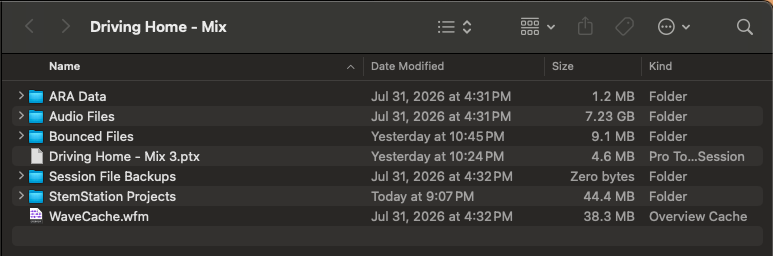
The copy sits in a StemStation Projects folder next to your session, and it references the same Audio Files folder as the original. It is a real working session, not a stub.
How it is named
| Song mode | Working copy |
|---|---|
| Stems | <Song> Stems.ptx |
| Stereo mix | <Song> Bounce.ptx |
Rename a song in the queue (double-click its name, or right-click the row and choose Rename song) and the copy takes the new name the next time its layout is read. Switch a song between Stems and Stereo mix and the copy is renamed to match when you print, so one song keeps one copy.
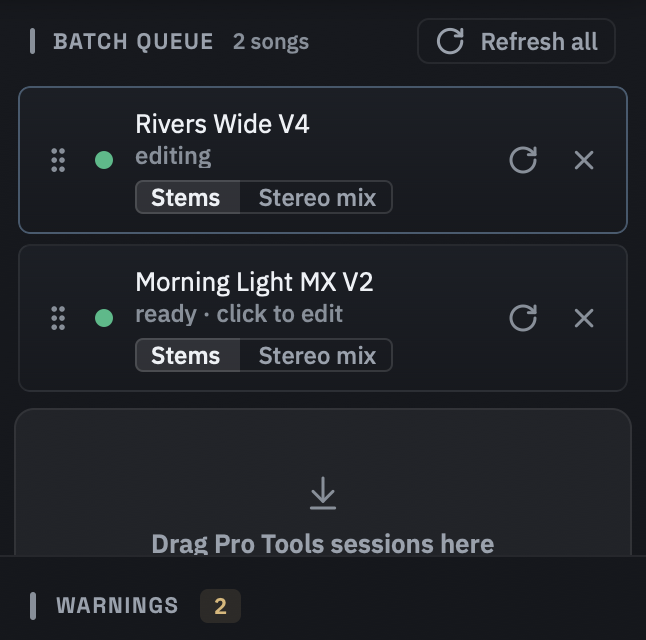
Your stems do not land on the copy
The two halves go to different places:
- The files land in your session folder, where you would expect them:
<session>/Bounced Files/<Song> Stems/by default, or wherever you point Bounce Settings, including another drive. Output is anchored to your session folder, never to StemStation Projects. - Only the imported tracks are on the working copy. With Import stems back on, the printed files are added to the open session (the copy) as soloed tracks. That import is the one part of the result the copy holds.
So your stems are in your session folder whether or not you ever open the copy again. If you want those tracks in your original session rather than the copy, import the files from the output folder yourself.
Closing
The working copy closes when the batch finishes, whether it printed cleanly, hit failures, or you stopped it. One song or ten, the last session closes.
The exception is a pause, which has not ended the batch: you paused to go and do something in Pro Tools, so the session stays where you left it.
Each print normally starts from a fresh copy of your original, so anything changed in the copy, including tracks imported by an earlier print, is replaced the next time that song prints.
The copies are ordinary sessions. Delete them freely. Your original and your bounced files are untouched, and the app makes a new copy next time.
Print a batch
There is one workflow. A single song is a batch of one.
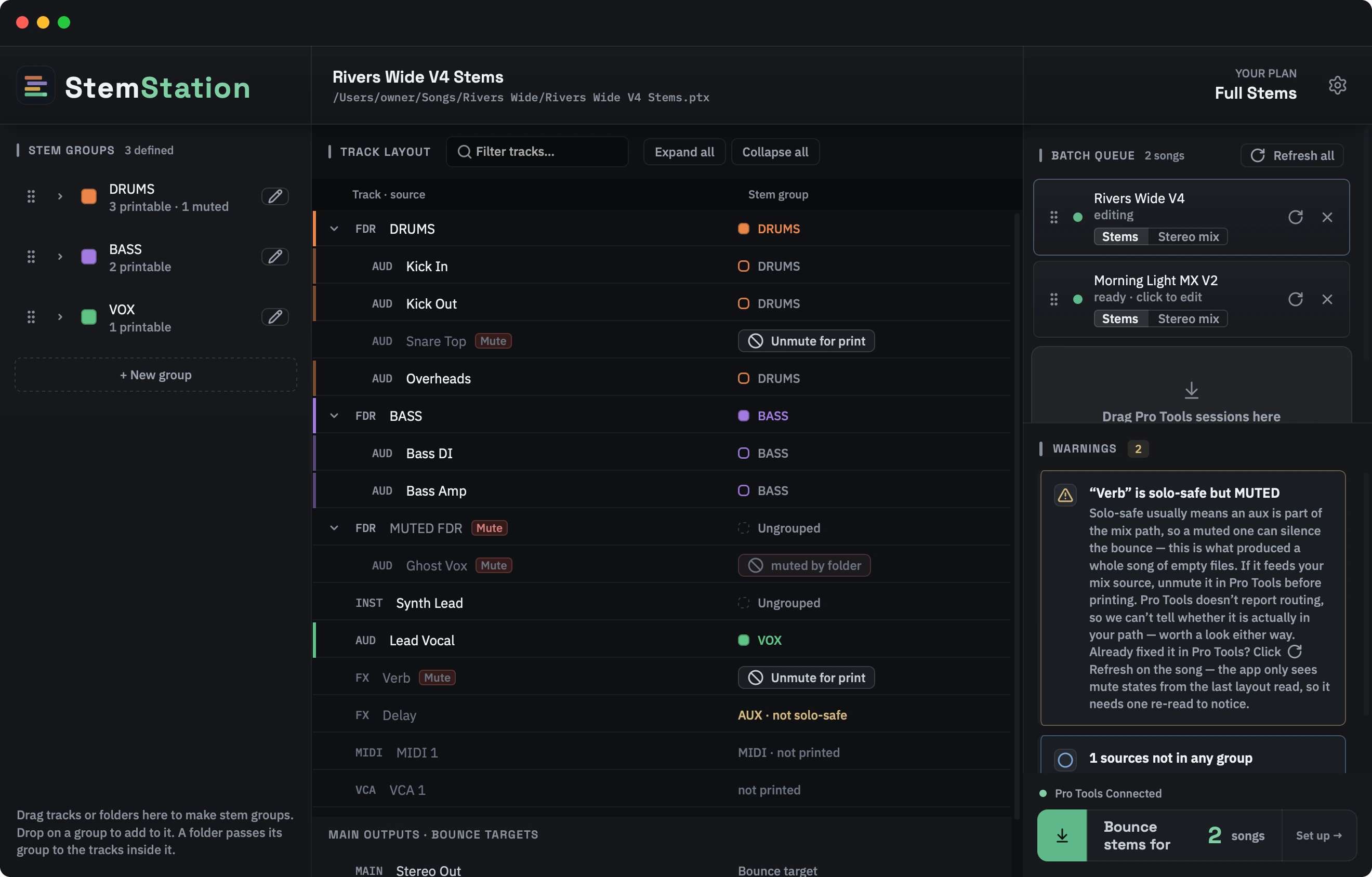
- Add your sessions. Drag
.ptxfiles onto the box in the middle of the window, or click it to browse. Add every session you want in the batch. - Press Read layouts. StemStation reads each session's tracks straight from its file. Pro Tools is not needed for this.
- Make your stem groups. Drag a track or a folder from the track list onto the Stem groups panel. Or click Stereo mix on the song's card in the queue on the right and skip this step: a stereo mix needs no groups.
- Press Bounce. Choose the format for the batch, then Continue →.
- Check the pre-flight and press Bounce N songs.
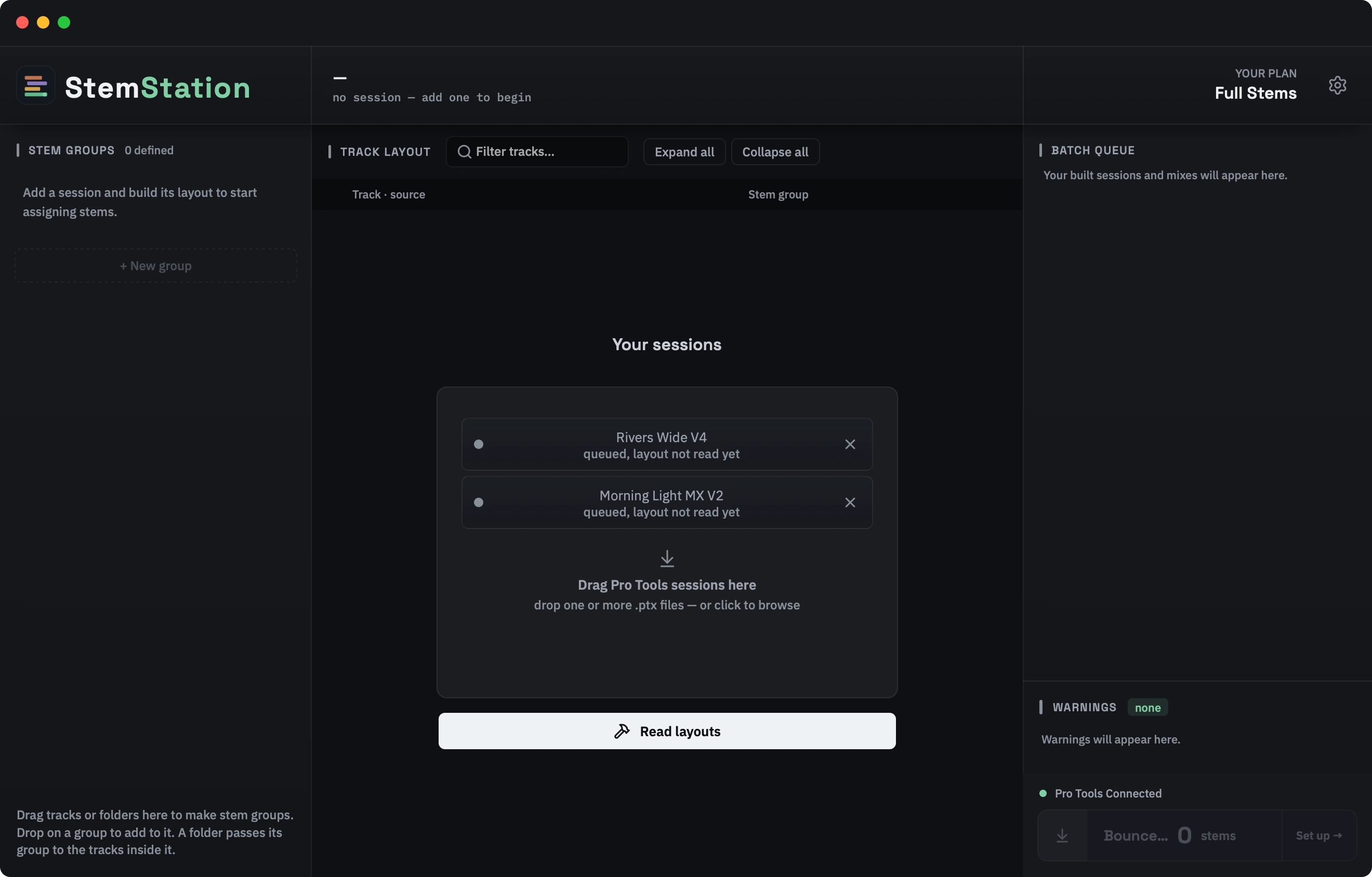
Reading takes a moment per session, and nothing opens on screen. If a session cannot be read from its file, its queue row says This session could not be read from its file. Build it with Pro Tools. and offers Build with Pro Tools: Pro Tools opens that session for a moment, with plug-ins off, and the app reads its tracks there. Building with Pro Tools needs the Accessibility permission. The same choice is on any song's right-click menu in the queue.
Printing is different. The print opens each session in Pro Tools normally, with plug-ins on, so your stems come through your mix and not dry. As each song opens, the app checks that Pro Tools agrees with the layout it read. A song that does not match is skipped and closed without saving, and the batch carries on; the report says why (see Read the result).
Versions of a song
A client often wants more than the stems: an instrumental, a TV mix, an a cappella. Each one can be a version of the same song, and every version prints in the same run.
- Add a version. On the song's card in the queue, next to Stems | Stereo mix, press +. Type the version's name, then choose Stems or Stereo mix. The new version starts blank. Once a song has two versions, its card shows a tab for each. The first tab is the song itself, called Stems or Stereo mix after what it prints, until you rename it.
- Set it up. Click a tab to open that version. Everything you do there is for that version only: its groups, its mutes, its stems or stereo mix. Its format, folder and Mix Source are on its own tab in the Bounce window.
- Change its name or what it prints. Click the tab that is already open. A small window opens with the name and Stems / Stereo mix. Enter saves, Esc cancels.
- Mute several tracks at once in a stereo mix. Click a track, then Shift-click another to take everything in between. Cmd-click or Control-click adds one track at a time, and dragging down the list takes the whole run. Right-click any of them and mute them all for print. Esc clears the selection.
- Rename or delete. Right-click a tab. The first tab can be renamed but not deleted.
- What you get. A stereo-mix version is named after the song and the version, for example
Rivers Wide V4 - Instrumental.wav. The first tab's files are named as they always were. - Two stems versions can't share a folder. If they would, a message asks you to give one of them a different folder name before the run starts.
Each version is printed from its own fresh copy of the session, so no version can change another. The first tab prints first, then the others in tab order.
Check the pre-flight
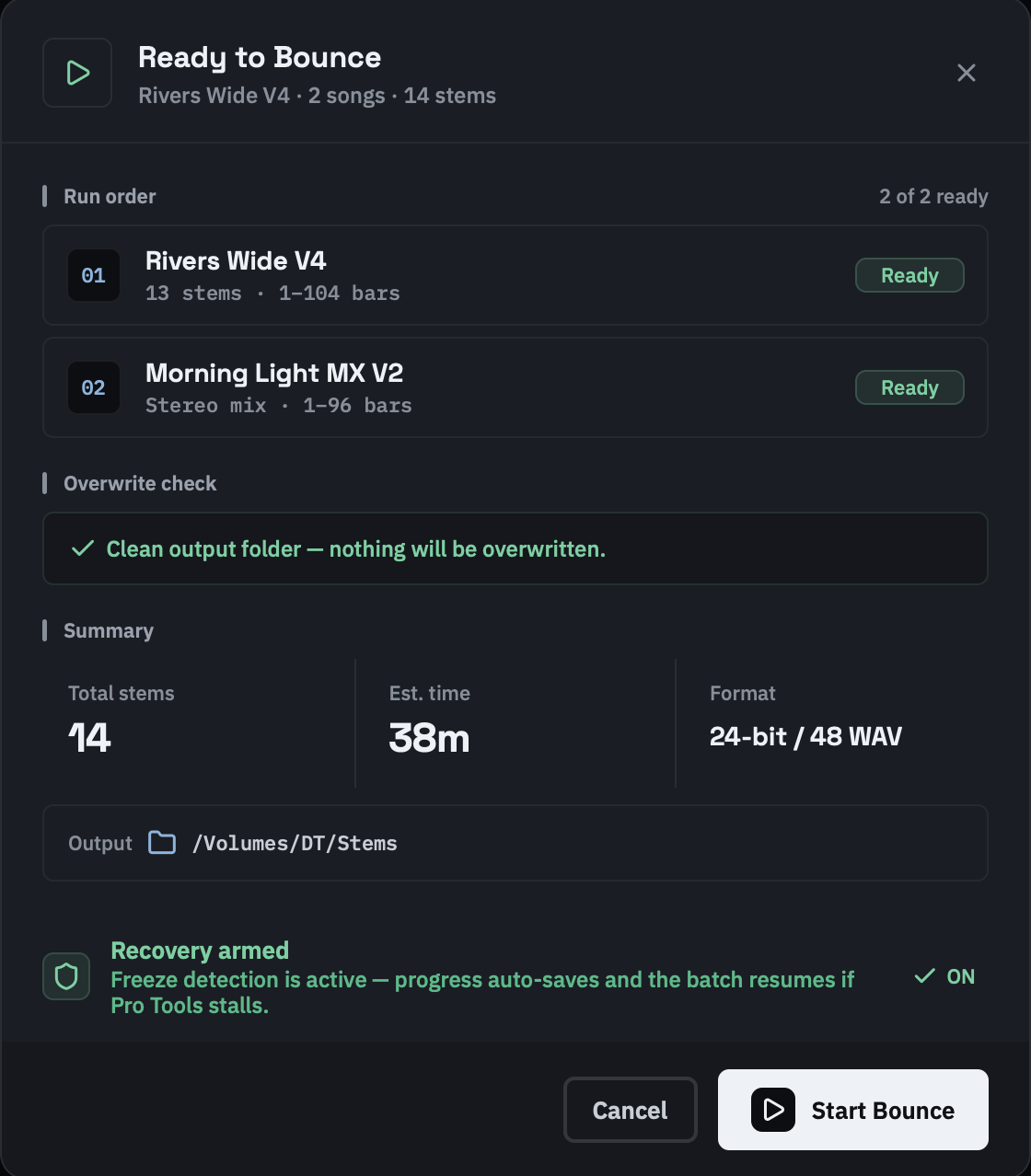
This is the last screen before anything is written. The part worth reading is Won't print: songs being left out of this run, each with a reason. The rest of the batch still prints. Fix the reason and bounce again to include them.
| Reason | Fix |
|---|---|
session not built | Press Read layouts |
no stem groups yet | Put at least one track in a group |
no stems assigned | Put at least one track in a group |
two stems share a name | Rename one of each pair |
no print region selected | Pick a memory location in Bounce Settings |
| a plan message | Your plan does not cover this. Switch the song to Stereo mix, or upgrade |
A song with no Mix Source is different: it stops the whole batch. Its row is marked Fix with the note no Mix Source selected — pick one in Bounce Settings before bouncing, and the button reads Pick a mix source to bounce until you choose one in Bounce Settings.
The disk and Pro Tools warnings are advisory and you can print past them. The disk warning fires when the output drive has less free space than the app estimates this batch will write (or less than 5 GB, if no estimate is available). If every song is under Won't print, there is nothing to bounce.
Will be skipped lists songs whose session changed in Pro Tools after their layout was read. They are left out of this run, and the rest can print without them. Re-read and go back reads them again and takes you to the first one, with its groups and settings kept, so you can look it over before you print.
Changing a session after its layout is read
Edit the session in Pro Tools and save it, then re-read it: Refresh all in the queue header refreshes every song, and the circular arrow on a single queue row refreshes just that one. A song read from its file is read again; a song that was built with Pro Tools is built with Pro Tools again. Either way your groups, assignments and bounce settings survive; only the track list is replaced. Tracks that are new since the last read are marked New and left ungrouped rather than being folded into a group they would have inherited.
While it prints
The Bounce button in the pre-flight (it reads Bounce N songs) is the only print trigger in the app. Once a batch is running, Pro Tools belongs to StemStation, and a small progress panel stays on top of every other window:
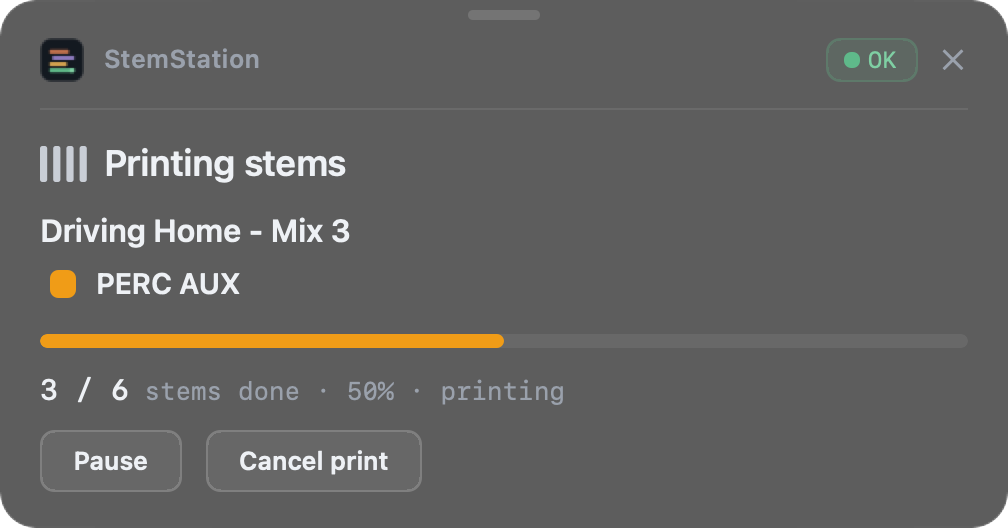
Do not touch Pro Tools while it prints. The app drives the Bounce dialog with keyboard and mouse events, and clicking into Pro Tools can steal the focus those depend on.
Do not let the Mac sleep.
Do not force-quit when it looks idle. See Pro Tools stopped responding.
Pausing and stopping
Both are on the progress panel.
Pause asks how: Finish this stem, then pause lets the stem that is printing finish, then holds; Pause now stops the stem in progress (and says how much of it is lost), then holds. The session stays open so you can do something in Pro Tools. Resume carries on from where it held, printing a stopped stem again.
Cancel print asks how: Finish this stem, then stop keeps what has been printed so far and closes the session cleanly; Stop now abandons the stem in progress and tells you how much of it is lost. Stems already printed are kept either way. The panel reads Stopped by you, briefly, then goes.
Read the result
When the batch ends
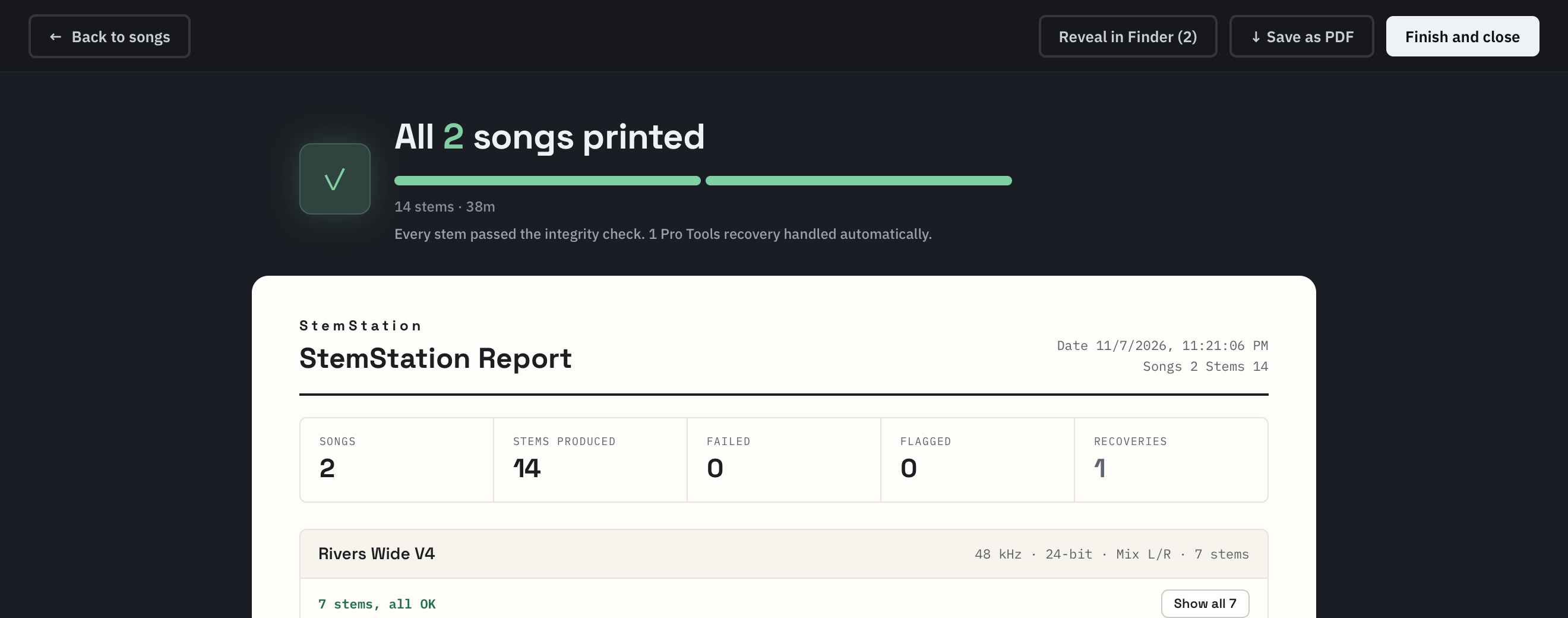
When the batch ends, the app opens its report. The headline counts songs: All 4 songs printed, or 3 of 4 songs printed when some did not. A single-song print counts stems instead. Under it, a bar with one segment per song shows each one green when it printed and red when it did not, then the number of stems, the time taken, and one line on what needs you, if anything. The app is strict about not dressing up a bad run: a run that printed nothing reads No songs printed, and the line about the integrity check only appears when stems were printed and passed it.
The bar across the top:
- Back to songs asks Start with a clean slate? first. Start fresh finishes the print session and clears the queue, ready for new songs.
- Reveal in Finder opens the folder your stems went to, one Finder tab per folder when the songs went to different places.
- Save as PDF keeps a copy of the report with the delivery.
- Finish and close asks Finish and quit StemStation? first, then finishes the session and quits StemStation. Save the PDF first if you want one.
A song that did not print has an Include / Exclude switch on its row and a line saying what Retry will do with it. Retry is at the bottom of the page; see Retry.
Where your files are
Where you set them in Bounce Settings. By default a stems print goes into <session>/Bounced Files/<Song> Stems/, and a stereo mix goes straight into <session>/Bounced Files/ with no folder of its own.
Stems are named prefix + group name, then a space and the suffix if there is one (both are empty by default, so out of the box a stem is named after its group). A mix is named whatever you typed, or the song name. Extensions are .wav, or .aif and .aiff for AIFF: Pro Tools picks the spelling and the app accepts whichever appeared on disk.
The Stem Report
The light, print-ready document in the middle of the page. The figures across the top are the fastest read on it:
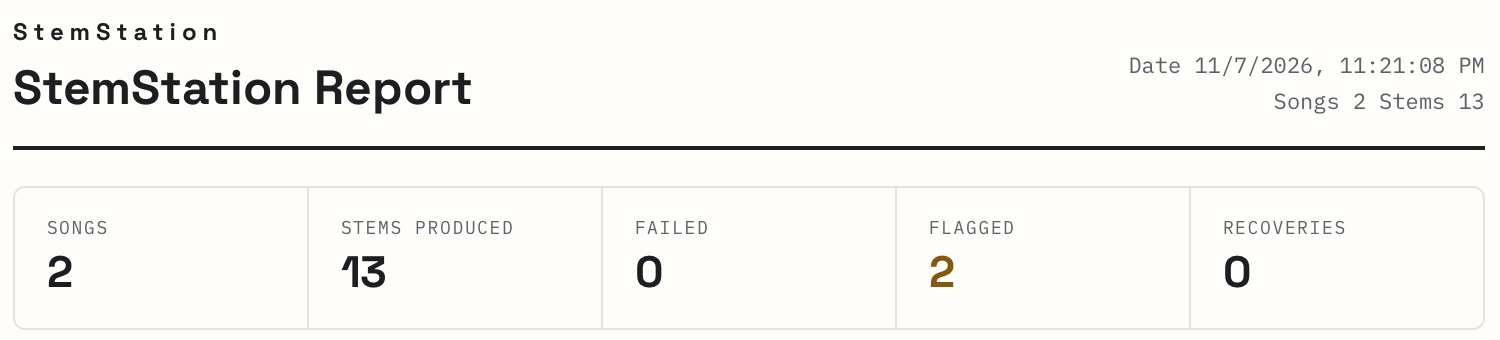
Below them, every song lists its stems with a status, length and size. A song whose stems all printed cleanly folds to one green line, N stems, all OK, with Show all to open it; the PDF always lists every stem. The events of the run (dialogs answered, recoveries) are listed at the bottom.
If you retried songs, the report covers the whole batch, every run of it, and says so under the figures. Each song that needed more than one run says how it got through.
What each status means
| Status | Meaning | What to do |
|---|---|---|
| Complete | Printed and measured, signal present | Nothing |
| Silent | Printed in full, but the level is below the signal threshold | Usually correct, see below |
| Truncated | The file is shorter than its header says | Re-print it |
| Abandoned | Pro Tools could not be recovered for this stem | See the song's reason |
| Error | The stem failed with an error | Re-print |
| No file | Nothing was written | Re-print |
Silent
Usually correct. If the part does not play in the region you printed, a silent stem is the right answer, and the app deliberately does not style it as a failure.
If you expected signal: check whether the group's tracks were muted (muted tracks are excluded by default), and check that the print region covers the part. Check the Mix Source in the song's header too. It names the output the audio actually came from, and a bounce from the wrong one gives stems that are full length, correctly named and completely wrong.
Truncated
The file on disk is shorter than its header says. The app checks this against the header and against the other stems in the song: they should share a length, and the longest is the true one, because a crash can only shorten.
It has already been re-bounced once automatically. A stem still short after that retry is reported truncated and the file is kept. Re-print it; Retry will, since a truncated stem counts as failed. Truncation means Pro Tools or the storage stopped mid-write. If it recurs, suspect the drive, particularly a network volume.
Abandoned
A song-level outcome with a reason code. Every code and what to do about it is in Troubleshooting.
Skipped
A song marked SKIPPED was not printed because its layout could not be trusted: when it opened, Pro Tools disagreed with the layout read from its file, or the session had changed since its layout was read. Nothing went wrong while printing, and the song was closed without saving. Leave it included and press Retry: its layout is rebuilt with Pro Tools or read again, and you look it over before it prints.
Stopped runs, a full disk and the Dolby Atmos stop each get their own card, all covered in Troubleshooting.
Pro Tools stopped responding
Read this before your first unattended batch
If Pro Tools stops responding mid-batch, StemStation notices, restarts it, reopens the session and carries on from where it stopped. Stems already printed are kept.
The recovery takes about four minutes, and the app looks idle for most of it. The progress panel turns amber and says what it is doing:
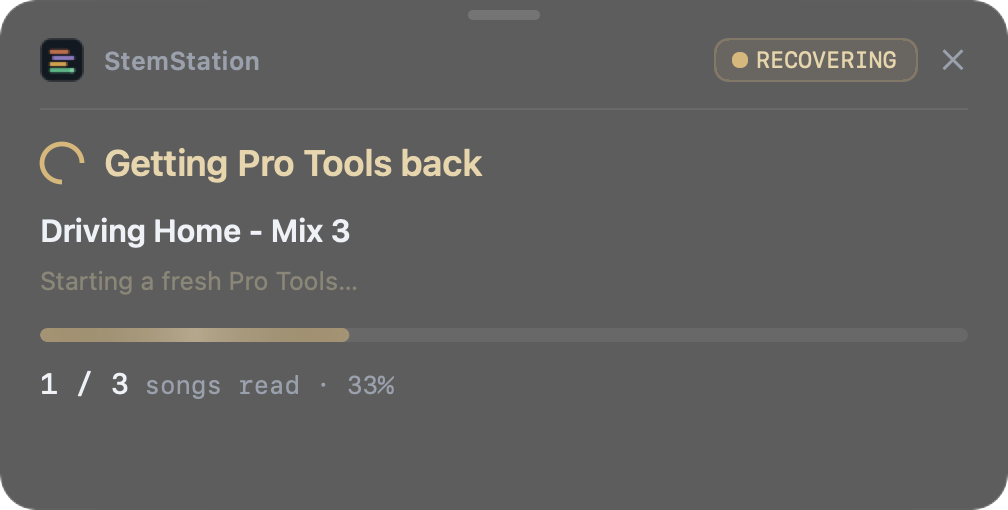
What triggers it
Pro Tools has to go quiet for a sustained stretch; one slow moment never starts a recovery. A long render does not either: the app watches whether the file is still growing, not how long it is taking. A ten-minute stem can legitimately take seven minutes to render, so nothing is abandoned for being slow, only for stopping.
What it does
Quit Pro Tools, relaunch it, reopen the working copy, and pick up at the stem that failed.
It will not force-quit Pro Tools while a dialog is on screen or a print is in flight: the app never kills a Pro Tools that is waiting on a human. And if a song defeats recovery repeatedly, the app gives up on that song rather than looping, and moves on to the next one.
The healing pass
When the batch reaches the end, it goes back over anything it could not finish and tries each one once more, on a freshly restarted Pro Tools. Only the missing stems are re-printed; the ones that worked are never touched. It is skipped if you stopped the batch yourself.
One extra pass, not an open-ended loop: a five-hour night cannot become a ten-hour one.
Retry
When songs did not print, the report lists each one with an Include / Exclude switch, set to Include, and a Retry button at the bottom that counts them: Retry 2 failed songs.
- Include tries the song again. If its layout was the problem, Retry first rebuilds it with Pro Tools or reads it again, keeping its groups and settings.
- Exclude leaves the song out. It is reported as failed, and its groups and settings stay in its
.stemstationproject file in the StemStation Projects folder beside the session, so you can print it another time.
Retry takes you back to your songs. Any song whose layout was read again or rebuilt is marked Look over in the queue, and a note says how many songs still need printing. Look them over, then press Bounce as usual.
The pre-flight then carries on from the batch you just printed. Songs that printed are listed under Already printed and are not printed again. Each song still to print has its Include / Exclude switch again. A song that printed only some of its stems prints just the missing ones, unless you changed its groups, in which case it prints in full. When every remaining song is excluded the button reads Finish session. Start a new session instead treats the songs on the card as a new batch.
The report at the end covers the whole batch, every run of it.
Read a failed song's reason before you include it: some, such as two stems with the same name or a full drive, need a change first or will fail the same way again. Troubleshooting has what to do for each.
Reboot and re-print
If a song has defeated two freshly restarted Pro Tools processes, the report shows Restart recommended… at the bottom, and the confirmation it opens offers a reboot:
⚠ We've tried printing
<song>twice, each time on a freshly restarted Pro Tools, and Pro Tools stopped responding every time.Restarting your Mac usually clears this. StemStation will reopen by itself as soon as you log in, with this retry ready to go. You'll just need to unlock your Mac first.
The app quits Pro Tools, writes down where to resume, and only then restarts the Mac. All three must succeed; any failure means no reboot at all, because a restart with nothing written down would lose your place.
A dialog the app does not know
Sometimes Pro Tools shows a dialog the app has never seen. It will not guess at one, because a wrong button in Pro Tools can lose work. Instead it asks you:
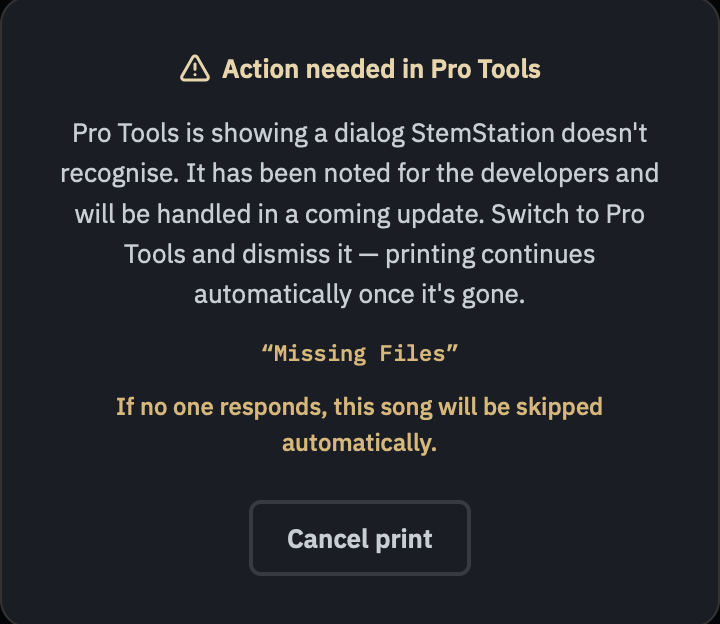
Switch to Pro Tools, answer the dialog, and printing continues by itself. If nobody answers, the song is skipped after 5 minutes when more songs remain, or 20 minutes when it is the last one: fail fast while there is still work to do, wait when there is not. The dialog's title and button labels are sent to us so it can be handled automatically in a later update; its text, your file paths and your session names are not.
Troubleshooting
Most StemStation problems are Pro Tools problems. Every code below is the literal text the app writes, so you can search this page for what is on your screen.
A stem is silent
The file is complete; its level is below the signal threshold. Usually correct. If the part does not play in the region you printed, that is the right answer.
If you expected signal, in this order:
- Muted tracks. Muted in the session means excluded by default. The group shows
N muted · excluded. Press Unmute for print on the tracks you want, unless the row readsmuted by folder, in which case the mute is on the folder and only Pro Tools can clear it. See below. - The Mix Source. Check the Stem Report's song header. If it is not the output you intended, the stems came from the wrong place.
- The print region. Confirm the memory location covers the part.
A stem is short
Reported Truncated. The app already re-bounced it once and it came back short again, so the file is kept and flagged. Re-print it.
Truncation means Pro Tools or the storage stopped mid-write. Suspect the drive, especially a network volume, if it recurs.
A whole group printed silent, and its tracks say "muted by folder"
The mute is on the folder, not on the tracks. Pro Tools works that way, and its scripting layer will not let StemStation change a folder's mute, so there is no in-app fix and the app does not pretend otherwise.
Unmute the folder in Pro Tools, then press Refresh all and print again.
You get two warnings before this costs you a run: the Warnings panel names the folder as soon as an affected track is in a group, and the pre-flight repeats it before the batch starts. Ignore both and the stems come out full length, correctly named and digitally silent.
A stem has signal but sounds wrong
Check the Mix Source in the Stem Report's song header. A bounce from the wrong output gives you full-length, non-silent, correctly named stems that pass every check the app makes.
Three layers refuse to print a song with no Mix Source selected (the pre-flight, the retry confirmation, and the print engine), so a sourceless song should never reach a bounce at all.
An unknown dialog stopped the run
⚠ Action needed in Pro Tools
Pro Tools is showing a dialog StemStation doesn't recognise. It has been noted for the developers and will be handled in a coming update. Switch to Pro Tools and dismiss it. Printing continues automatically once it's gone.
If no one responds, this song will be skipped automatically.
The app clears the dialogs it knows. It will not guess at one it does not, because a wrong button in Pro Tools can lose work. Answer it and printing resumes by itself.
If nobody answers, the song is skipped after 5 minutes when more songs remain, or 20 minutes when it is the last one.
Pro Tools froze
Wait. Recovery takes about four minutes and looks idle. See Pro Tools stopped responding.
If the same session keeps freezing, open it by hand. A repeatedly freezing session is almost always a plug-in, and Pro Tools failing to open it without StemStation involved is the fastest confirmation. This has been diagnosed on a real session: a plug-in froze Pro Tools on load, and the session failed to open by hand too.
"Crashed" vs "killed": if Pro Tools left no crash report, it did not crash.
The disk filled up
Stopped — the output drive ran out of space. Stems printed before it filled are complete; free space and re-run to finish the rest.
The app checks before every stem and stops rather than write a partial file, so what you already have is complete.
The Dolby Atmos renderer is on
Pro Tools loaded with the Dolby Atmos Renderer active, which isn't currently supported for stem printing. Turn off the internal renderer in Pro Tools (Setup > IO > Dolby Atmos Tab > Uncheck Internal Renderer), then start the bounce again.
Import back into the session failed
Audio printed fine, but importing the tracks back into Pro Tools failed — re-import manually (the WAVs are on disk).
Your audio is fine. Only the step that adds stems back to the working copy failed. Two known causes: a sample rate different from the session (the app greys the toggle out and warns), and a full disk, where the import is skipped entirely.
Accessibility permission was lost
Settings ▸ Status shows Not granted: building and bouncing are blocked, and the pre-flight's button becomes Grant Accessibility to bounce. macOS revokes the permission when an app's signature changes, so a reinstall or an update can do it. Re-grant it and the app picks the change up by itself.
Every abandon reason
What the app writes against a failed song, and what to do. Many codes carry a detail on the line below them: a dialog title, an error, the setting that failed, the track or stem names involved, or what Pro Tools was showing.
| Code | What happened | What to do |
|---|---|---|
app-error: | StemStation hit a fault of its own on this song, not Pro Tools. | Restarting Pro Tools would not help, so the batch did not try. Send a support bundle from Settings ▸ Status. |
atmos-renderer | Pro Tools opened with the Dolby Atmos Renderer active, so the batch stopped. See The Dolby Atmos renderer is on. | Turn off the internal renderer in Pro Tools, then retry. |
bounce-blocked-by-dialog | Pro Tools had a dialog on screen, so no bounce could start and every stem produced no file. | Dismiss the dialog in Pro Tools and re-run. There is nothing wrong with your bounce destination. |
bounce-not-producing | Bounces kept finishing without producing files, and no Pro Tools dialog was on screen, so the bounce destination was most likely rejected (for example a saved drive that is not mounted). | Check the bounce destination in Pro Tools, then re-run. |
cancelled | You stopped the batch. | Nothing. |
crash-loop | Pro Tools failed twice in a row while being restarted for this song. | Open the song by hand and check it loads cleanly, then re-run. Already-printed songs are kept. |
dialog-on-screen | A Pro Tools dialog was on screen that StemStation could not answer, so the bounce could not start. | Switch to Pro Tools, answer the dialog, then use Retry. |
disk-full | The destination drive ran out of space. | Free space (or pick another drive) and re-run. |
duplicate-stem-names | Two of this song's stems have the same name, so it was skipped. Pro Tools would write both to the same file. | Rename one of each pair in StemStation, then bounce again. No retry is offered because it would fail the same way. |
duplicate-track-name | Two active tracks share a name, and one belongs to a stem being printed. Pro Tools can only solo a track by name, so the stem would have carried both. | Rename one of the two tracks in Pro Tools, then re-run. |
engine-hung | The print engine stopped before it could write its report. | Re-run. If it recurs, send a support bundle. |
failed-to-load | Pro Tools wedged twice loading this session; the session itself may be at fault. | Open it by hand and check it loads cleanly first. |
layout-mismatch | Skipped. This song's layout did not match Pro Tools when it opened, so nothing was printed. | Leave it included and press Retry in the report: its layout is rebuilt with Pro Tools, then look it over and print it again. |
layout-unconfirmed | Skipped. The layout could not be checked against Pro Tools because a fresh working copy could not be made. | Try again. |
needs-user-recover-failed: | A dialog went unanswered and Pro Tools could not be cleared afterwards; the batch stopped. | Deal with the dialog (quit Pro Tools by hand if it will not respond), then re-run. |
needs-user-timeout: | An unrecognised dialog went unanswered past the give-up window. | Answer the dialog named below it, then re-run. Please report it to support@stemstation.app so the app can learn it. |
open-error: | The session could not be opened: Pro Tools still loading, a dialog blocking, or a known fault in StemStation's own recovery. | Re-run; nothing you did caused this. No restarts recorded for the song means it is most likely the known fault. |
open-failed | Pro Tools could not open this session: busy loading off slow storage, or a dialog blocked the open. | Re-run. On a network or external drive, give it a moment to settle. |
pt-busy-dialog-never-opened | Pro Tools was too busy to open the Bounce dialog, even after waiting. | Let Pro Tools settle, then re-run. |
pt-frozen-before-bounce | Pro Tools stopped responding after the session opened and before the first stem, and was still not responding after a restart. | Restart your Mac, then re-run. If it survives a restart, open the song by hand and check which plug-in fails on load. |
pt-froze-loading | A plug-in stopped responding while Pro Tools was restoring the session. | Open it by hand and check that plug-in. Removing or re-authorising it clears this. |
print-error: | The song stopped with an error while printing; the batch moved on. | Re-run. If it recurs, send a support bundle. |
ptsl-unresponsive-alive | Pro Tools stayed busy and stopped answering for several minutes, usually after a bounce on slow storage. Nothing was wrong with your files. | Re-run. If it recurs, check the speed of the drive the session is on. |
restart-ceiling | Pro Tools had to be restarted too many times for one song, so it was skipped and the rest of the batch carried on. | If a message from Pro Tools is named below it, deal with that first: a missing or failing plug-in stops the song every time. Otherwise restart your Mac and re-run (printed songs are kept). If it still fails, open the song by hand and watch what happens as it loads. |
session-edited | Skipped. This session was changed after its layout was read. | Leave it included and press Retry in the report: its layout is read again, then look it over and print it again. |
settings: | The app could not confirm the Bounce settings it had just set, and refused to print with settings it could not verify. | Re-run. If it recurs, open Pro Tools' Bounce dialog by hand and check nothing is resetting it. |
setup-error: | Something failed preparing the song, before any stem printed. | Re-run. If it recurs, send a support bundle. |
terminal | Pro Tools showed an error it cannot continue from (an "end of stream", "could not complete open session" or internal assertion message), so the song stopped. | Note the message, quit and reopen Pro Tools, then re-run. If it happens again on the same song, send a support bundle. |
unexpected-error: | An error the app did not expect. | Re-run. If it recurs, send a support bundle. |
unresolved-dialog | A Pro Tools dialog stayed open and blocked the print. | Dismiss the dialog in Pro Tools, then re-run. |
When the app will not print at all
These appear under Printing is locked in the pre-flight, above the Bounce button. The messages are the app's own words.
| Code | Message | What to do |
|---|---|---|
signed_out | Sign in to print — open Settings ▸ Account. | Sign in |
signin_required | Your sign-in on this Mac is no longer valid — sign in again in Settings ▸ Account to print. | Sign in again |
signed_in_elsewhere | Your account is now in use on another Mac. To print here, open Settings ▸ Account and press "Use StemStation on this Mac". | Move the account back to this Mac |
validation_required | Your subscription needs to be verified — connect to the internet, then try again (Settings ▸ Account). | Get online once |
grace_expired | You've been offline past the 5-day grace period — reconnect to verify your subscription, then print. | Get online |
no_plan | Choose a plan at stemstation.app to start printing. Everything up to the bounce works without one. | Choose a plan, or start your free trial |
trial_expired | Your free trial has ended — choose a plan at stemstation.app. | Choose a plan |
expired | Your access has ended — choose a plan at stemstation.app to start printing again. | Choose a plan |
past_due_locked | There's a payment problem with your subscription — update your card at stemstation.app. | Update your card |
stereo_only | N selected songs are set to Stems, but your plan is stereo mixdowns only — switch them to Mix mode, or upgrade at stemstation.app. | Switch mode, or upgrade |
mix_cap | This batch needs N stereo mixes but only N of your 25 monthly mixes remain — upgrade for unlimited mixes at stemstation.app. | Wait for next month, or upgrade |
| any other | Printing is locked on this account — check your account at stemstation.app. | Check your account |
The batch is all-or-nothing; there are no silent partial prints. More detail in Account and licensing.
Sending a support bundle
Settings ▸ Status ▸ Export encrypted support bundle…. It packages the app's own logs from your last five batches, your app settings and basic system information, locks the bundle so only StemStation support can open it, and saves it to Downloads. The logs include your song, session and folder names and the text of any Pro Tools dialogs, but never session files or audio. Nothing is sent until you attach it to an email to support@stemstation.app.
Stem groups
A stem group is a named set of tracks soloed together and bounced to one file. Groups belong to the song, and their order in the panel is the print order.
Making groups
Drag and drop is the main way. Drag a track or folder from the track list onto the Stem groups panel on the left.
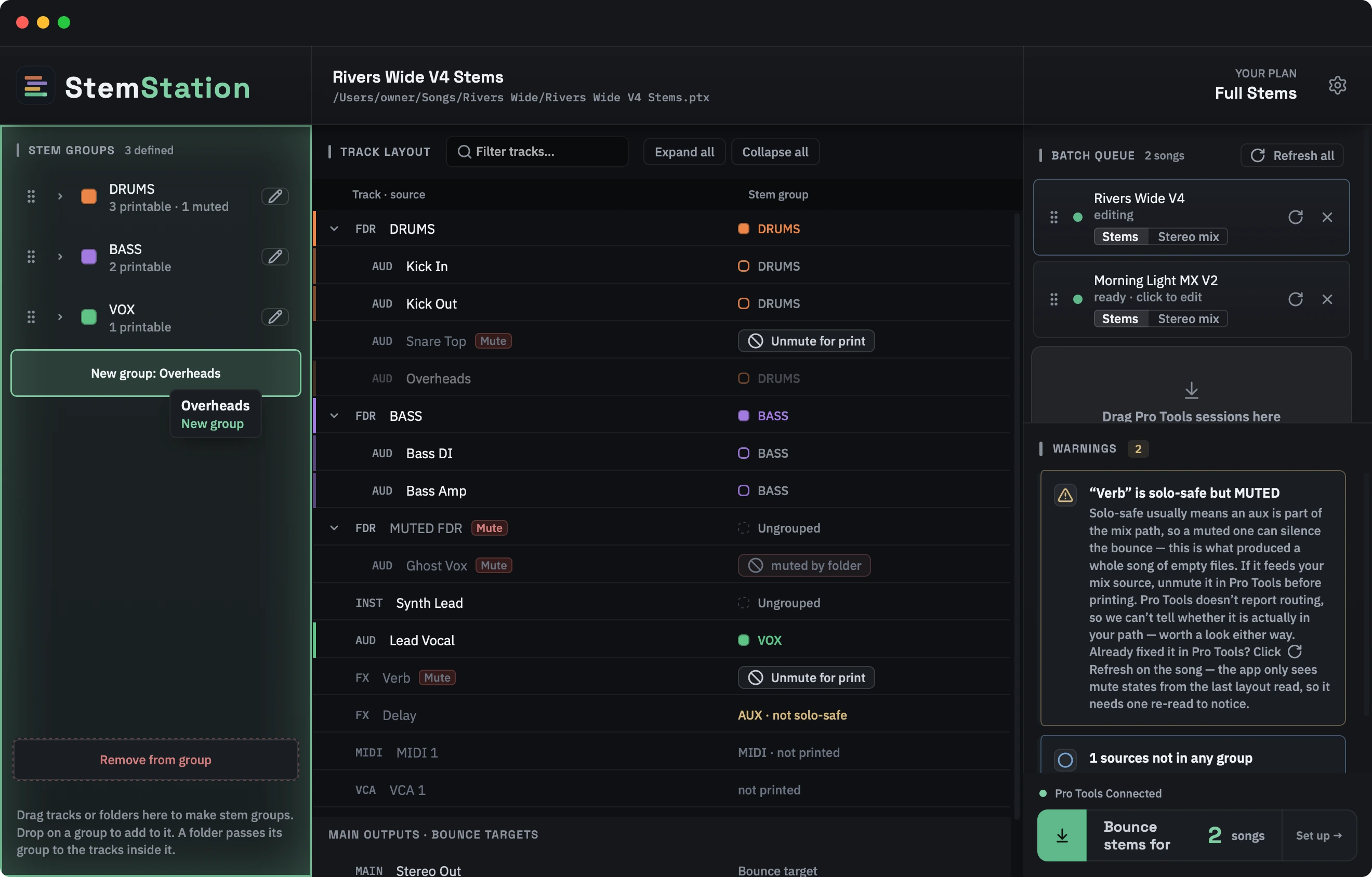
- Drop it on a group to add it to that group. The group lights up and the tag beside the pointer says what will happen.
- Drop it on the empty space, or between two groups, to make a new group there. A folder makes a group named after the folder; a track makes a group named after the track. If a group with that name already exists, the row joins it, because two stems cannot share a file name.
- To move several at once, select them first (click, Shift-click for a run, Cmd-click to add or remove one) and drag any of them. Dropped on a group they all join it. Dropped on empty space, the app asks one question: One group or Separate groups.
- Press Escape, or let go anywhere else, and nothing changes.
Right-click a track or folder and choose Add to new group… or Add to existing group. The + group tag on a folder makes a group from that folder in one click.
+ New group at the bottom of the panel makes an empty group to drag into.
To take a track out of a group, right-click it and choose Remove from group, or drag it onto the Remove from group strip that appears at the bottom of the panel while you drag a grouped track.
Cmd+Z undoes the last change to your groups and Shift+Cmd+Z redoes it. Click a group to see which tracks are in it: they are tinted in the track list.
What can be in a group
Audio and instrument tracks, and VCAs. Everything else appears in the list but is never printed, and the right-hand column says why: MIDI · not printed, Bounce target for the main output.
VCAs
A VCA carries no audio of its own, but it controls tracks that do, so it can be used two ways:
- Drag a VCA into a stem of its own. When that stem prints, StemStation solos the VCA and Pro Tools solos every track the VCA controls, wherever they sit in the session. The stem contains exactly those tracks, through whatever busses they are routed to. A VCA only ever joins a group when you drag it there yourself: it never follows a folder's group, because its tracks may lie outside that folder.
- Mute a VCA for print. Right-click the VCA row and choose Mute for print: its tracks are silent in every stem of that print, exactly as if you had pressed M on the VCA in Pro Tools. Muting the vocal VCA, say, prints an instrumental.
A VCA that is in no group reads Drag into a stem to print its tracks. That is normal and is not counted among the "sources not in any group".
Why FX returns are excluded
This is the first question a Pro Tools engineer asks, so: FX return auxes are solo-safed. They print wet into whatever is soloed, so each stem already carries its own reverb and delay tails. Putting a return in a group would double the effect.
An aux that Pro Tools reports as not solo-safe is marked AUX · not solo-safe and the Warnings panel explains what to do about it. When Pro Tools reports no solo-safe information for the session, every aux row says AUX · solo-safe to be heard in stems instead, as a reminder.
Printing a return as its own stem. Right-click an FX return and choose Print as its own stem. The app asks whether to mute it while the other stems print (Mute it) or leave it playing into them. A reverb stem printed this way is made by committing the return in the working copy, which is why it prints last.
Master faders are the bounce target, not a source. MIDI tracks produce no audio of their own.
Inactive tracks
Excluded from the list entirely.
Muted tracks
A track muted in the session is excluded by default. This is why a group can have tracks in it and still print nothing; its status line reads N muted · excluded.
What you can do about it depends on where the mute is.
The track itself is muted
This is the case the app can fix. Its row offers Unmute for print, on the right, where a folder-muted row shows its notice instead. Press it and that track prints. The unmute is applied to the working copy, never to your session.
You can also mute a track for the print without touching your session: right-click it and choose Mute for print. A right-click on a group offers Mute tracks for print for the whole group.
A folder above it is muted
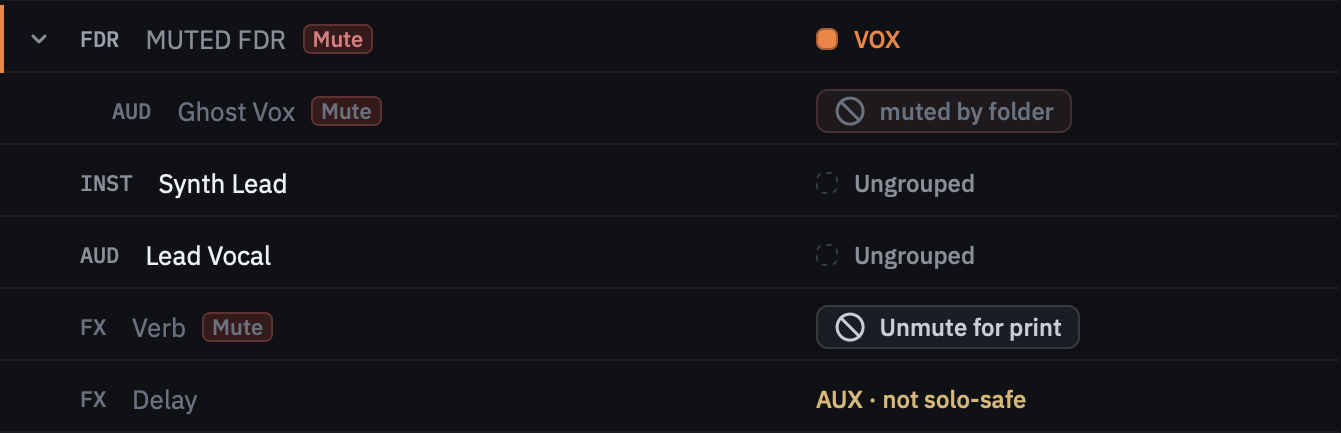
The row reads muted by folder and there is no button, because there is nothing the app can do. Pro Tools puts the mute on the folder, not on each track inside it, and the Pro Tools scripting layer refuses to change a folder's mute. Right-click the row and the app says where the mute is: Muted by “CHOIR” — unmute it in Pro Tools, then ↻ Refresh to print this.
Unmute the folder in Pro Tools, then press Refresh all.
The refresh is not optional. Mute state is read once, when the layout is read, and nothing re-reads it afterwards. Unmute the folder and the app goes on showing muted by folder, and goes on printing silence, until the layout is read again. Use Refresh all, or the circular arrow on the song's own queue row for just that one. Save the session in Pro Tools first: the layout is read from the file.
Refreshing costs you nothing. A refresh replaces the track list only. Your groups, your assignments and the song's bounce settings are all kept, and tracks that are new since the last read are marked New and left ungrouped rather than quietly folded into a group they would have inherited.
If you leave it, those tracks print digitally silent: full length, correctly named, and empty. The Warnings panel names the folder, and the pre-flight says it again before the run starts.
Inheritance
Put a folder in a group and every printable track beneath it goes too, as inherited (a hollow swatch) rather than explicit (a filled one). Put a child directly in a different group and it becomes an override, badged so a deliberate exception is visible at a glance.
To exclude a single child from a folder-wide assignment without ungrouping the folder, right-click the child and choose Remove from group.
Several folders at once
Select two or more folders in the list (Cmd-click them, or Shift-click a run) and two shortcuts open up.
Shift-Option-click the + group tag on any one of them and every selected folder becomes its own stem group, each named after its folder.
Right-click any one of them and the menu talks about folders rather than tracks:
- Add 3 folders to separate groups, the same as the shortcut above
- Add 3 folders to one group…, all three into a single stem, with the name field open so you can name it
- Add 3 folders to existing group, all three into a group you already have
Two details worth knowing:
- These assign the folders, not the tracks inside them, so a track you add to one of those folders in Pro Tools later comes along automatically after a refresh.
- A folder muted in the session is skipped, because its stem would be empty. If that leaves fewer than two folders, the menu goes back to its normal form.
Individual tracks caught in the same selection are ignored; a folder gesture means folders. Groups are created top to bottom in list order, not in the order you clicked.
Group names become file names
Double-click a group's name, or press its pencil, to rename it. Two groups cannot share a name. Renaming to a name already in use is refused, case-insensitively:
That stem name is already used. Two stems can't share a name — Pro Tools writes both to the same file, so the second one would overwrite the first.
This stem has been left as “<its old name>”.
The refusal is deliberate rather than an auto-fix: silently adding a "2" would give you a stem you never asked for, and silently allowing it loses audio. The check ignores case because macOS file names do.
Batch rename refuses the same way. Select several groups, right-click and choose Batch rename… for a find-and-replace across them. The preview marks any clash and names what it would collide with, and Apply does nothing until you change it. Nothing is applied by halves: if one pair would collide, none of the renames happen.
If a duplicate is already in a session you saved earlier, the Warnings panel names the stem, the song stops reading as ready, and the Bounce button refuses and tells you which song is at fault. Rename one of the pair and it clears.
Prefix and suffix are added in Bounce Settings, not here.
Presets
A preset is the batch defaults new songs start from, and holds four fields only: Mix Source, file format, bit depth, and import-stems-back.
Everything else (region, snap, sample rate, location, file name) belongs to the individual song, because those cannot sensibly be shared across sessions.
Manage them from Settings ▸ Output ▸ Configure…, or save the current batch settings with Save as… at the top of Bounce Settings. In the preset editor, changes are kept only when you press Save; Cancel or Escape discards them.
Bounce settings
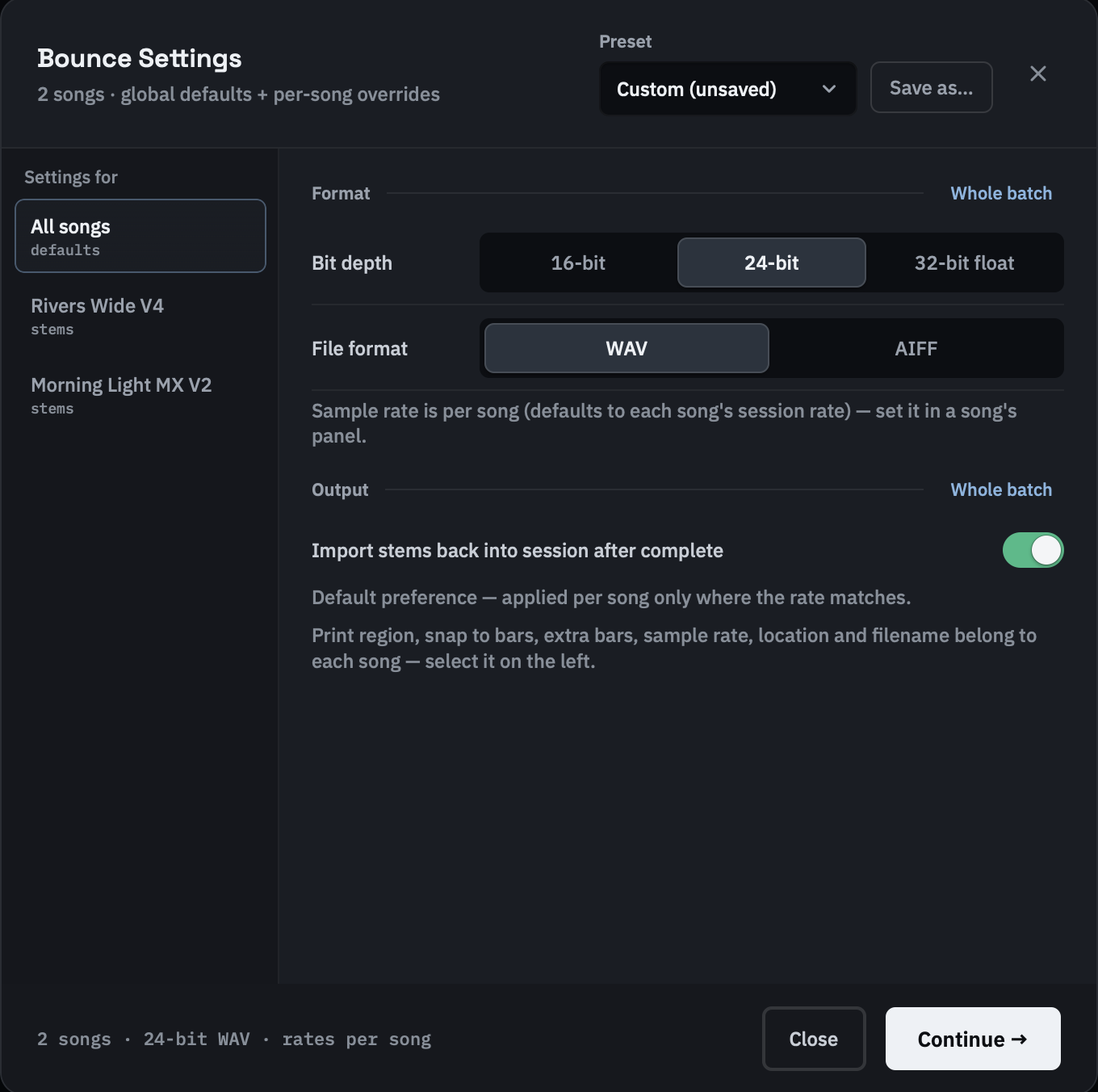
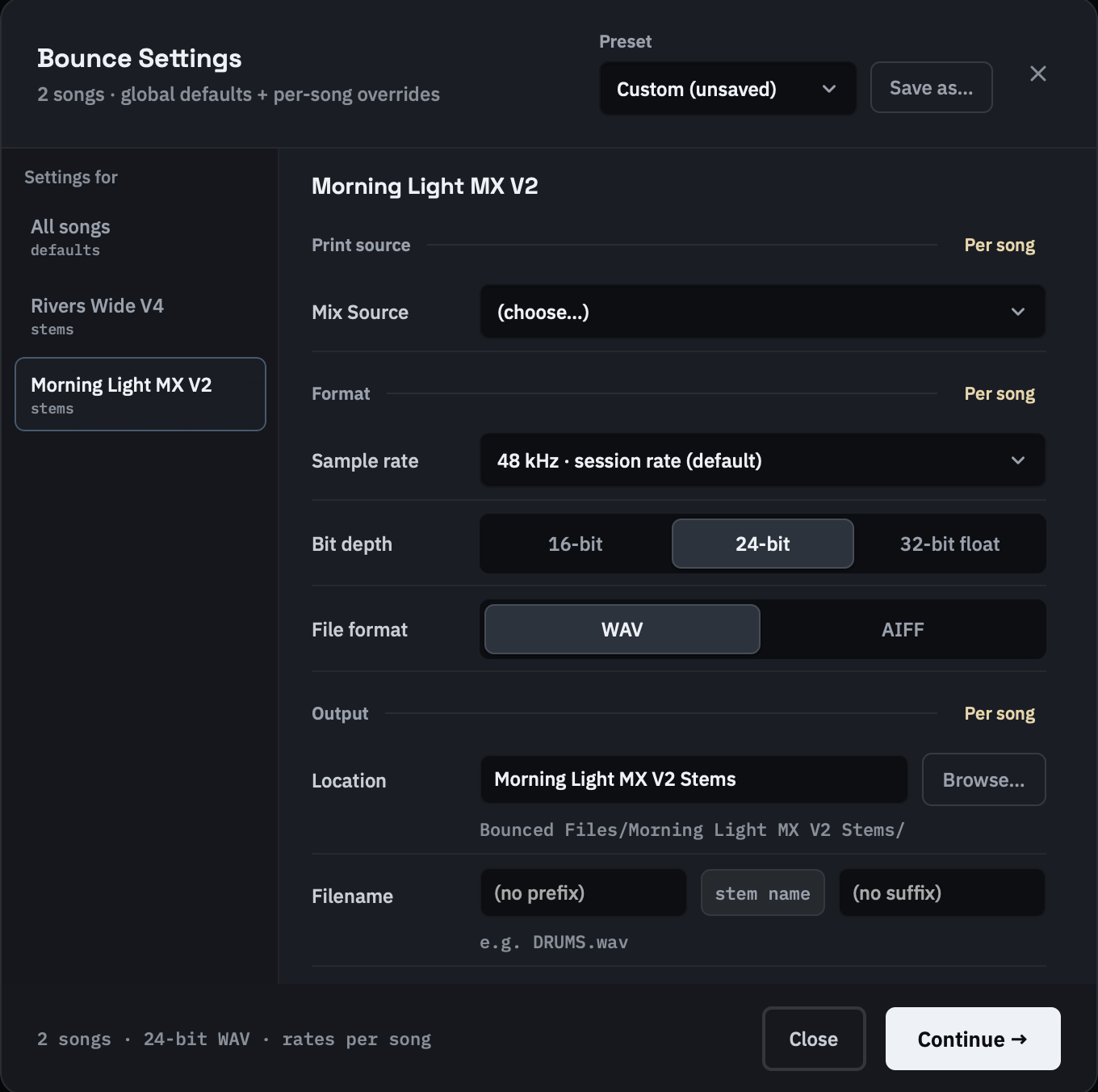
Press Bounce (bottom right) to open the window. Every setting here belongs to the song. Three of them can be set for the whole batch: file format, bit depth, and import-stems-back. Everything else (Mix Source, sample rate, region, snap, location, file name) is chosen per song. The first Mix Source you pick is copied to the other songs that offer the same source.
With two or more songs, select All songs on the left to set the batch defaults, or a song to override them. The label on each section's right says which it is: Whole batch or Per song. ↺ Reset appears once a song has its own settings, and clears them. With one song, you see just that song's settings.
Closing the window
Close (or Escape) closes Bounce Settings and keeps every setting you made. Nothing is undone; reopen it and they are all there. A click on the dimmed area around the window does nothing, so a stray click cannot take it away. Escape closes an open drop-down first. Continue → hands the plan to the print engine and moves on to the pre-flight.
Mix Source is required
A song with no Mix Source selected cannot print. The pre-flight refuses it, and if one somehow reached the engine, the engine would refuse to bounce rather than print from an unknown bus.
The reason is worth knowing: Pro Tools' Mix Source selection persists between songs. A song that never set it would bounce from whatever bus the previous song left selected, producing full-length, non-silent, correctly named stems from the wrong place, which no integrity check can catch.
The list is read from Pro Tools' own Bounce dialog (the app opens and cancels it). If it is empty, ↻ Load mix sources fetches it.
Print region
The region comes from a memory location in your session. If there are none, the song's row says so and the pre-flight lists the song under Won't print.
Check the resolved range, Prints bars X–Y (N bars), rather than the marker's name. That is what will actually print after snapping.
Snap to bars rounds out to whole bars at both ends. It is off by default for every song, stems or stereo mix, and you can turn it on per song. Extra bars pads the snapped region and only appears when snap is on, because padding without snapping does nothing.
File name
Stems: prefix + the stem name + suffix. The middle is fixed: the stem's name is the group's name, set in the Stem groups panel. The preview line under the boxes shows the result, for example DRUMS.wav.
Mix: one editable box, defaulting to the song name. Whatever you type is the file name; there is no automatic " Mix" suffix and the prefix is not applied.
Where stems land
Location is relative to your session folder, not to the working copy: Bounced Files by default. Browse… picks a different parent folder, which can be on another drive; the folder name box beside it stays as you typed it.
A stems print goes into a new folder, <Song> Stems. A stereo mix has no folder of its own by default: the file lands straight in the Location folder, unless you type a folder name in the box. The Stems suffix itself is Settings ▸ Output ▸ Stems folder suffix.
Import stems back
Adds each printed stem to the working copy as a soloed track, then saves. On by default.
Greyed out and forced off when the song's sample rate differs from the session's: stems at another rate cannot be imported back, and the app says so rather than failing later.
This moves nothing. The files are already in your session folder, at the Location above; the import only adds tracks to the working copy. Your original session is untouched either way.
File format
The app does not assume the extension Pro Tools will write. For AIFF it looks for both .aif and .aiff and accepts whichever appeared on disk.
Settings
Press the cog in the top-right corner. Five tabs. (The StemStation logo in the top-left corner opens the website.)
Output
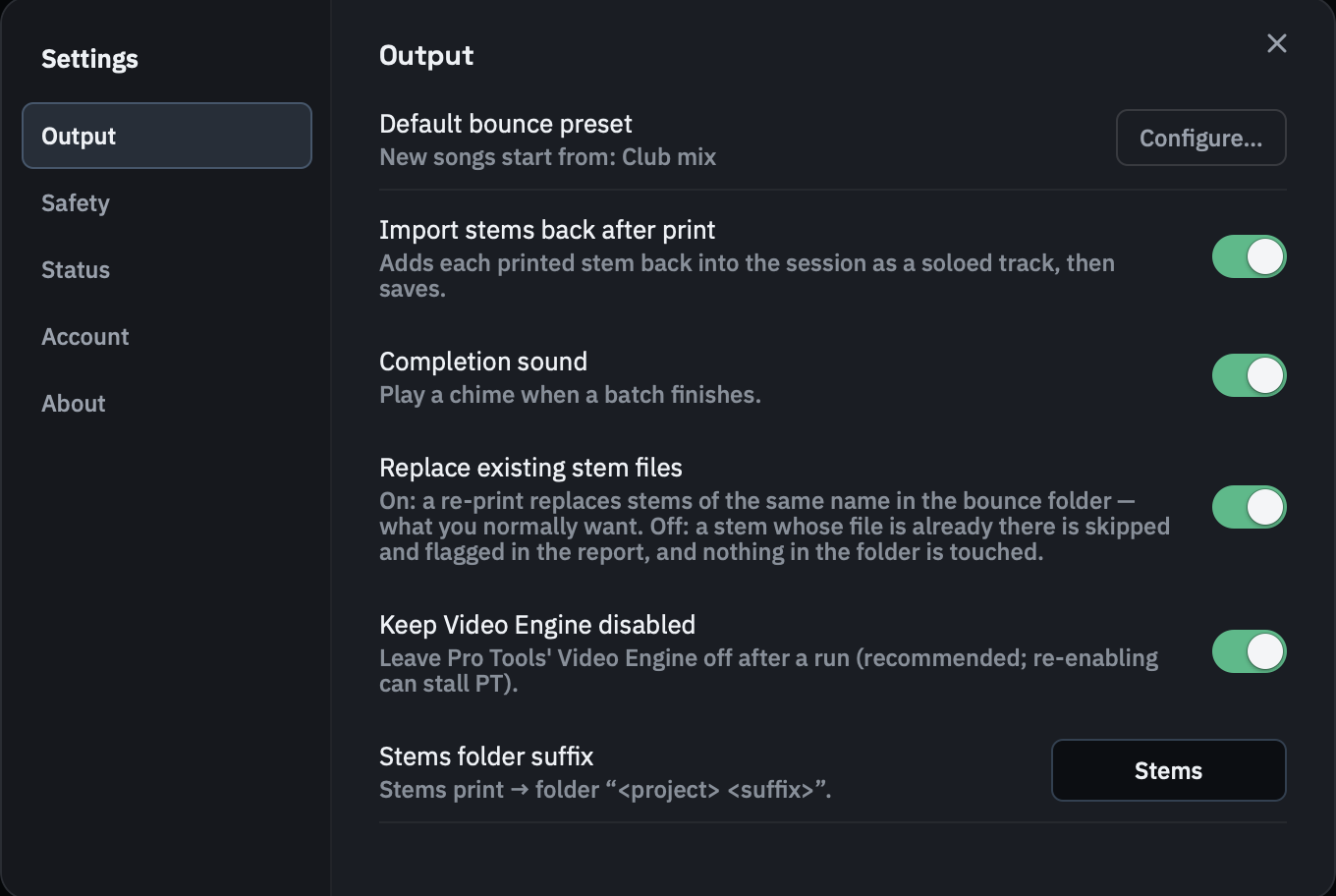
| Setting | What it does | Default |
|---|---|---|
| Default bounce preset | The preset new songs start from. Configure… manages presets. | the built-in default |
| Import stems back after print | Adds each printed stem to the working copy as a soloed track, then saves | On |
| Completion sound | A chime when a batch finishes | On |
| Replace existing stem files | On: a re-print replaces stems of the same name. Off: a stem whose file already exists is skipped and flagged in the report, and nothing in the folder is touched | On |
| Keep Video Engine disabled | Leaves Pro Tools' Video Engine off after a run; re-enabling it can stall Pro Tools | On |
| Stems folder suffix | The folder a stems print goes into is <Song> <suffix> | Stems |
A corrupt preferences file falls back to these defaults rather than failing.
Safety
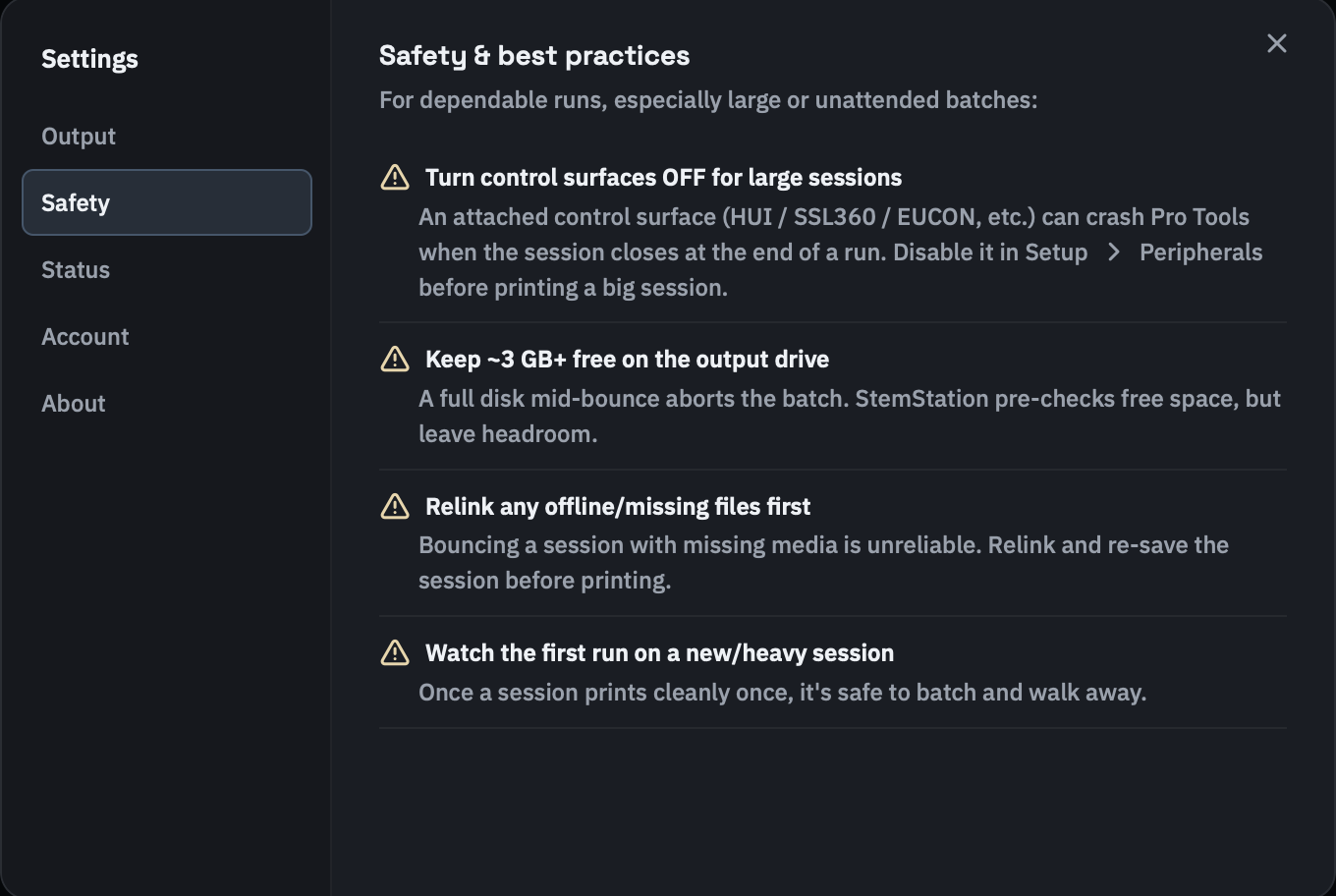
Four reminders for dependable runs. Two things the panel does not spell out:
The control-surface warning is disputed. The app says an attached control surface can crash Pro Tools when a session closes. The app's own notes record that this was later re-attributed to a faulty project rather than the control surface. The advice is cheap to follow and may still be right, but it is not settled.
The disk figure is a rule of thumb. The pre-flight's own warning fires when the output drive has less free space than the batch is estimated to write (or less than 5 GB, if no estimate is available). The Status tab's Output drive line turns amber below 5 GB.
Status
Six checks, re-read with Refresh. Control surfaces is a standing reminder, not a detection. It is always amber; the app never checks whether you have one attached. Export encrypted support bundle… is here too; see Troubleshooting.
About
What StemStation is, the Pro Tools trademark notice, and Replay walkthrough, which runs the walkthrough again on the built-in example session. The version number is on the Status tab.
Updating StemStation
When you open StemStation and a newer version is out, a popup offers it, with three choices: Update now, Later, and a Don't ask again for this version box. The box covers that version only; the next version asks again. Return is Update now and Escape is Later. The popup comes after the first-run walkthrough, if you take it. If you have already started working before it is offered (you have clicked, typed or added songs, a minute has passed, or layouts are being built), you get a small notice in the corner instead, with the same Update now and Later. While a print is running nothing about the update is shown; the corner notice appears once the print has finished. Settings ▸ Account also has Update now whenever a newer version is out.
Update now downloads the new version, checks it, installs it and restarts StemStation. It takes about a minute. Your songs come back afterwards, in the same order, with their setups as you left them; a song whose layout was never read comes back as a newly added song. StemStation saves every song first and will not restart if a save fails. If a song's drive is not connected when StemStation restarts, the other songs come back and StemStation names the one that could not; its setup stays on its drive, untouched. A file you double-click or drop onto StemStation while the update is running is kept and opened afterwards.
Where StemStation cannot replace itself (for example when you run it from the installer window instead of your Applications folder), Update now opens the website's download page instead.
An update waits while a print is running, while layouts are being built, while a print is paused or left unfinished, or when a song's setup could not be saved. StemStation says which, and you can update once it is cleared.
If the update cannot be installed, StemStation says why and offers Download from the website. The download on the website is always there, as before.
Account and licensing
Printing needs a signed-in account. Planning (adding sessions, building layouts, making groups) is free; the licence is checked when you start a bounce.
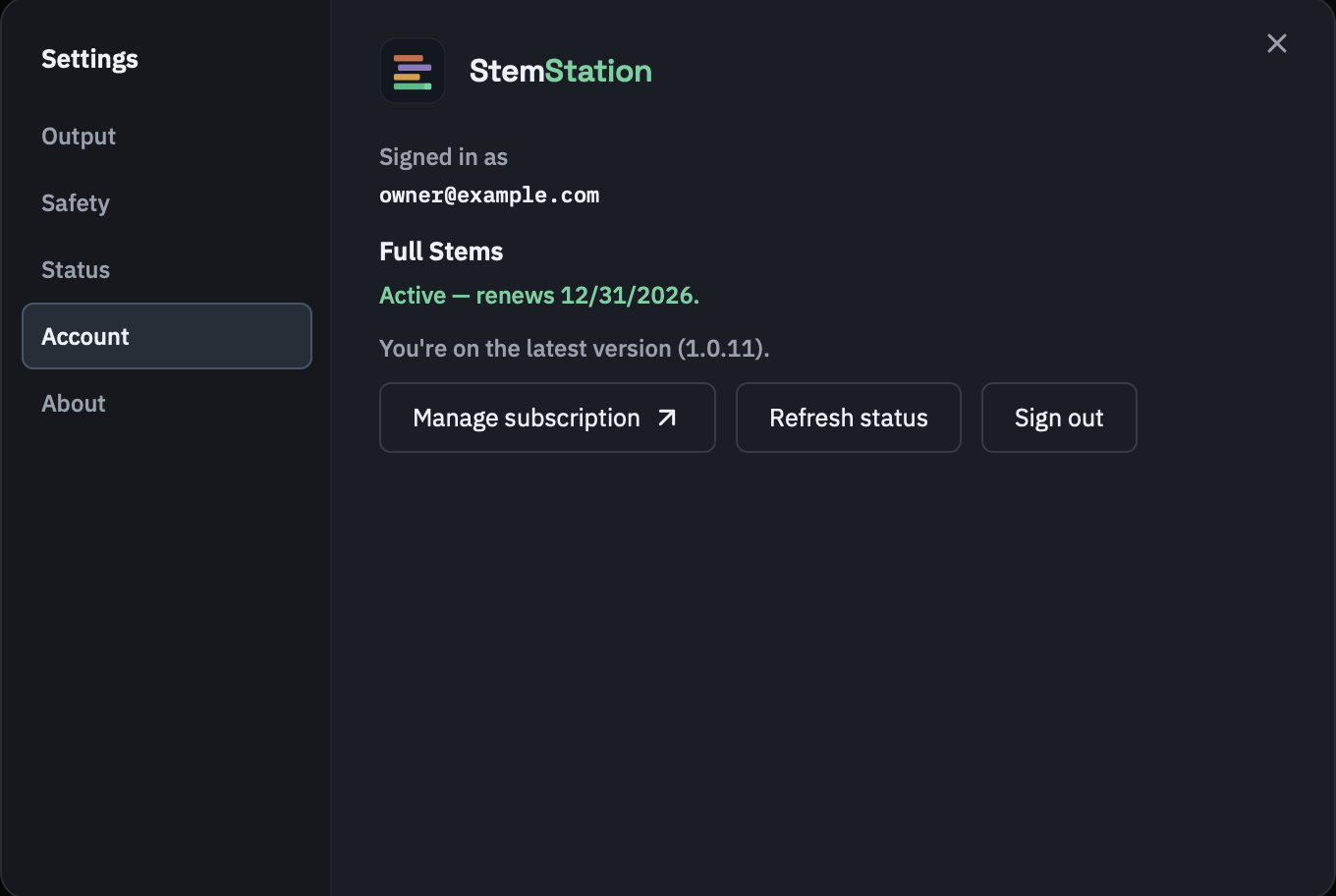
Getting an account
Create your account at stemstation.app, or press Sign up on the app's sign-in screen. After you confirm your email, your account page offers two ways to start:
- Choose a plan. Pick monthly or annual billing, pay, and printing unlocks straight away.
- Start a free trial. Every feature, no card. It lasts a set number of days, and the app and your account page show how many are left. Choose a plan any time during the trial or after it ends, in the same account.
A Start free trial button on the website starts the trial as soon as you confirm your email, and a Buy now button takes you straight to that plan once you've confirmed. Then sign in to the app with the same email and password.
The plans
| Plan | Instrument stems | Stereo mixes |
|---|---|---|
| Free trial (full access) | Yes | Unlimited |
| Mixdown | No | 25 per month |
| Mixdown Unlimited | No | Unlimited |
| Full Stems | Yes | Unlimited |
A batch containing Stems-mode songs on a mixdown-only plan is refused. Switch those songs to Stereo mix, or upgrade. The same songs appear under Won't print in the pre-flight.
The mix cap
25 stereo mixes per calendar month on Mixdown. Other plans have no cap.
The count lives on the server. Your local copy is an offline cache only; deleting it, reinstalling, or moving to another Mac re-syncs the real number and never resets it.
The month is counted in UTC. Settings ▸ Account shows Monthly mixes: N of 25 used, or syncs when online (cap 25) when it cannot be read.
If a batch needs more than remain, it is refused as a whole; there are no silent partial prints:
This batch needs N stereo mixes but only N of your 25 monthly mixes remain — upgrade for unlimited mixes at stemstation.app.
An unknown count never blocks a paying user: offline with no cache, the batch proceeds and the server reconciles later.
Working offline
The app checks your licence at launch, about every half hour while it runs, and again when you start a batch if the last check is more than 15 minutes old. If the server cannot be reached, a cached licence keeps you printing for 5 days past its expiry.
Grace only applies when the server marked the licence eligible, which is true for an active subscription and a cancelled-but-paid-through one, and false for a trial, a past-due or an expired one. The app fails closed: no flag, no grace. Grace exists for silence from the server, not for a definitive no.
While it applies:
Can't reach the license server — you're in the offline grace period until
<date>. Printing still works.
Once it is exhausted, printing locks until you reconnect.
Cancelling
Cancel from the website via Manage subscription ↗. A cancelled subscription stays active until the end of the paid period: printing continues, and it remains grace-eligible, so you can still work offline within it.
Status lines
| Situation | What it says |
|---|---|
| No plan yet | Choose a plan to start printing. Everything up to the bounce works without one. |
| Trialing | Free trial — full access. N days left. |
| Active | Active — renews <date>. |
| Cancelled | Canceled — your plan stays active until <date>. |
| Past due | There's a payment problem — printing keeps working for a few days while you update your card. |
Refresh status re-validates immediately if something looks stale. Sign out signs this Mac out; signing in again is all it takes to come back.
One Mac at a time. Signing in on another Mac moves your account there. The first Mac then reads Your account is now in use on another Mac, and Settings ▸ Account offers Use StemStation on this Mac to move it back. A print already running finishes first.
The messages shown when printing is actually blocked are in Troubleshooting, because that is where you will look.